
Workflows and schedules
Workflows are ready-made automations, like "Google Ads Audit Checklist" or "Shopify Daily Sales AI Email Report". Schedules run a task on its own on a set timing, like every Monday at 9am. Both are powered by AI Team, and both work on free credits.
How do I run a workflow?
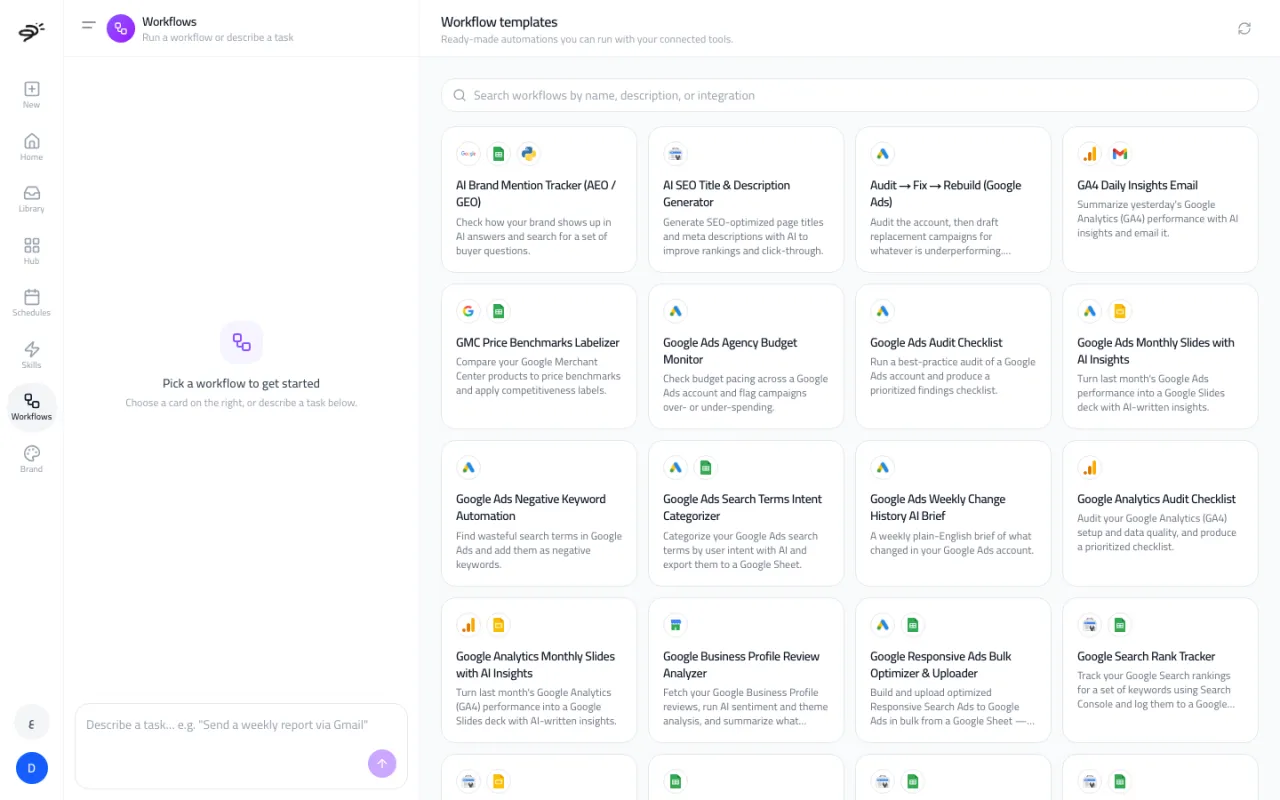
- Open Workflows in the sidebar.
- Browse the templates, or search by name, description, or app.
- Select a template. It shows the apps it needs. Connect any that are missing with Connect.
- Fill in the options, if there are any (for example a date range or a sheet name). Choosing Custom range shows two date pickers.
- Select Add to message, then send. Or select Create schedule to run it on a timing.
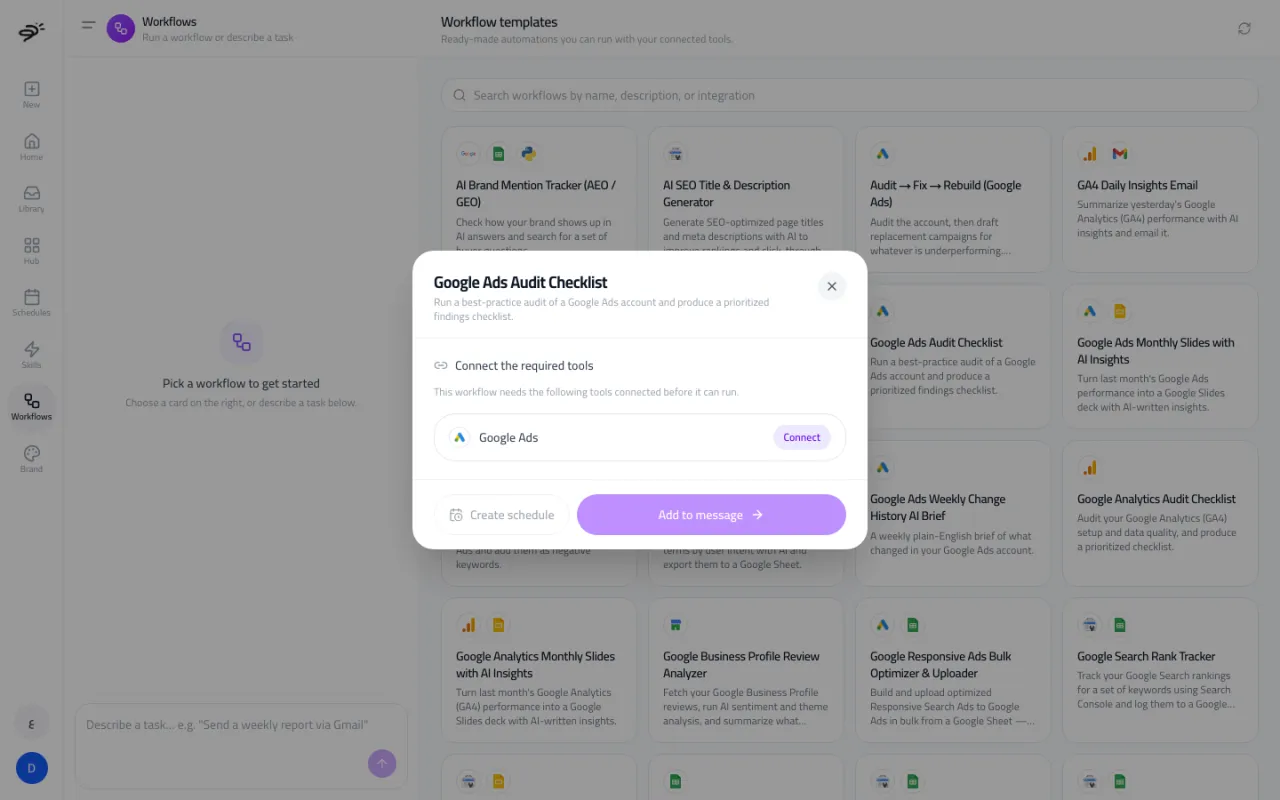
You can also type any task in the box on the left of the Workflows page, without a template.
Which workflows are there?
There are more than 35 templates, and we add more over time. Some examples:
- Reports: Google Ads, Meta Ads, TikTok Ads, Pinterest Ads, and Google Analytics monthly slides with AI insights; Cross-Channel Monthly PPC Report; Meta Ads Creative Report to Google Docs.
- Audits: Google Ads, Meta Ads, and Google Analytics audit checklists; Audit, Fix, Rebuild (Google Ads).
- Monitoring: Google Ads budget monitor; Google and Meta budget pacing; weekly change history briefs.
- Bulk work: Meta Ads, TikTok Ads, and Google responsive ads bulk uploaders from a Google Sheet. Everything is created paused so you can review it first.
- Search and SEO: Google Search rank tracker; Search Console query categorizer and N-gram analysis; AI SEO title and description generator; AI Brand Mention Tracker for AI answers.
- Store and daily emails: Shopify Daily Sales AI Email Report; GA4 Daily Insights Email; price comparison tracker; Google Merchant Center price benchmarks.
- Research: Competitor Ads Spy; Google Business Profile Review Analyzer; LinkedIn content analyzer.
How do I create a schedule?
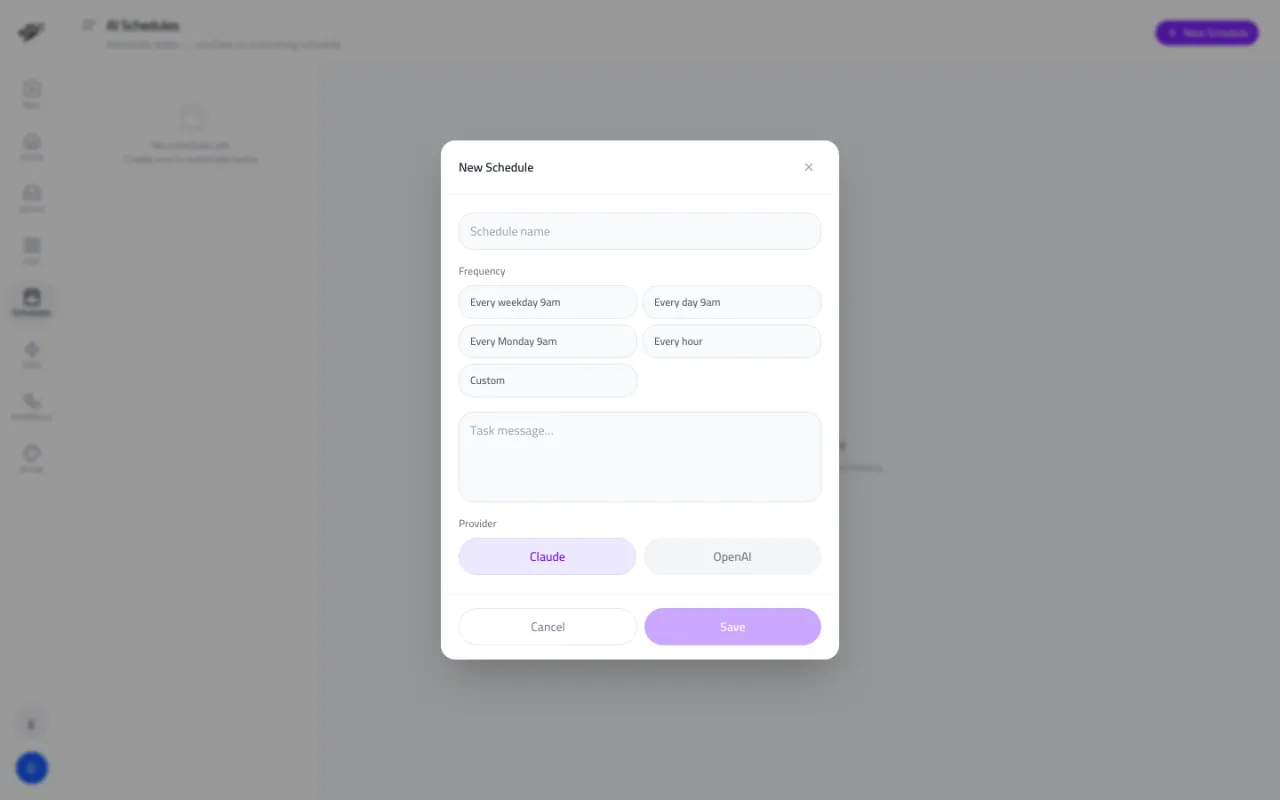
- Open Schedules in the sidebar and select New Schedule. Or select Create schedule on a workflow, and the task is filled in for you.
- Give it a name.
- Pick how often it runs: Every weekday 9am, Every day 9am, Every Monday 9am, Every hour, or Custom.
- Write the task, for example "Email me yesterday's Google Ads spend and conversions."
- Pick the AI provider (Claude or OpenAI) and select Save.
Select a schedule in the list to see its run history.
What if an app gets disconnected?
Each scheduled workflow remembers which apps it needs and checks them every time it runs. If one has been disconnected, the run stops and tells you which app to reconnect, instead of running without the data it needs.
Last updated September 25, 2026