
Sub-agent
Video AI
Video AI makes short videos from a description. Use it for product demos, social clips, and ad footage. It reads your brand profile so the style fits your brand.
You can reach it by asking in the Create chat ("Make an 8 second video of our coffee being poured in slow motion") or by opening Video AI from its card on the Create tab.
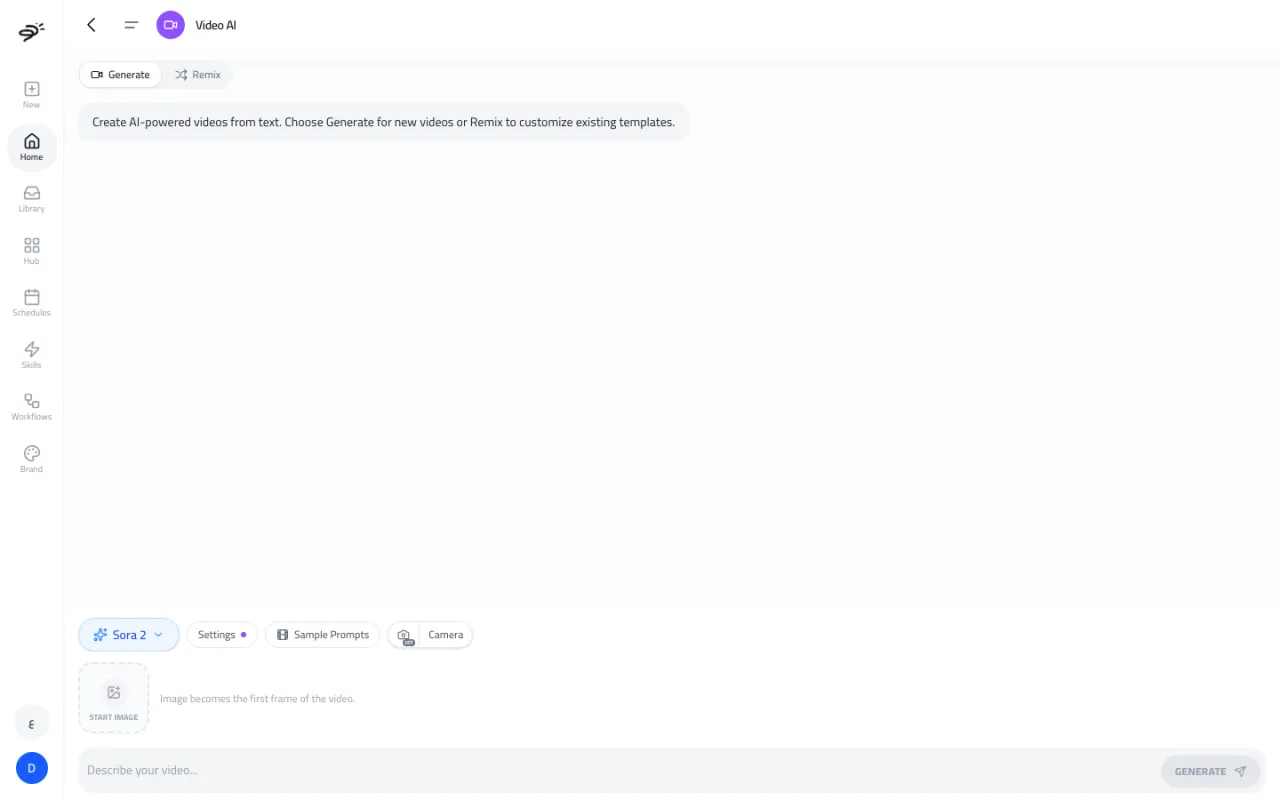
How do I make a video?
- Choose Generate for a new video, or Remix to change a ready-made template.
- Describe the video. Say what happens, where, the light, and how the camera moves.
- Optional: add a start image (and, for some models, an end image). The video starts from that picture.
- Optional: pick a model and open Settings to set the shape, length, and quality.
- Select Generate.
Videos take a few minutes to render. You can leave the page. The video shows in the chat and in your Library when it is ready.
Need ideas? Open Sample Prompts. Want a film look? Turn on Camera to choose a camera, a lens, and a focal length.
What settings can I change?
- Model. Sora 2, Sora 2 Pro, Veo 3.1, Veo 3.1 Fast, Veo 3, Veo 3 Fast, Veo 2, Kling 3, Kling 3 Omni, Kling 2.6, Kling 2.5 Turbo, Gen 4.5, Wan 2.5, Wan 2.2 Fast, Grok Video, DreamActor, PixVerse 5.6, PixVerse 5, or Auto-select.
- Aspect ratio. 9:16 (vertical, for stories and reels) or 16:9 (wide).
- Length. Depends on the model. For example Sora 2 makes 4, 8, or 12 seconds. Veo makes 4, 6, or 8 seconds. Kling makes 5 or 10 seconds.
- Resolution. From 360p up to 4K, depending on the model.
- Audio. Some models (Veo 3 and 3.1, Kling 3 and 2.6, PixVerse 5.6) can add sound. Sound costs more.
- Mode. Standard or Pro (Kling 3 only).
How many credits does a video use?
Most models charge per second of video. Failed videos are not charged.
| Model | Credits per second |
|---|---|
| Grok Video, DreamActor | 7 |
| Wan 2.5 | 7 (480p), 14 (720p) or 20 (1080p) |
| Kling 2.5 Turbo | 10 |
| Kling 2.6 | 10, or 19 with audio |
| PixVerse 5.6 | 10 to 20, by resolution |
| Veo 3 Fast, Veo 3.1 Fast | 14, or 20 with audio |
| Sora 2 | 15 |
| Gen 4.5 | 16 |
| Kling 3, Kling 3 Omni | 23 (Standard) or 31 (Pro) |
| Veo 3, Veo 3.1 | 27, or 55 with audio |
| Veo 2 | 68 |
| Sora 2 Pro | 95 |
A few models charge per video instead: Wan 2.2 Fast uses 7 (480p) or 14 to 15 (720p) credits per video, and PixVerse 5 uses 41 to 218 credits per video depending on length and resolution.
For example, an 8 second Sora 2 video uses 8 × 15 = 120 credits.
Tips for better videos
- Describe one clear scene. Short videos work best with one action.
- Mention the camera: "slow push-in", "handheld", "top-down".
- For clean footage you can edit later, add "no text, no logos, no captions".
Last updated September 25, 2026